

Color Swatches
This guide shows you how to set up product color swatches in the CROapps Focus theme using Shopify's Standard Product Taxonomy and category metafields (product attributes). It adapts best practices so you can quickly enable visual color selection for shoppers.
Overview
Color swatches in Focus are powered by the product's category metafields (sometimes called product attributes) that become available after you assign a Product Category from Shopify’s Standard Product Taxonomy. Once the category provides a Color attribute, you can:
- Standardize color names (e.g., "Navy" vs. "Dark Blue")
- Automatically map metafield color values to variant option values
- Display consistent swatches across collections and product pages
TIP
You can create swatches for any category metafield that includes a color attribute value.
Why Product Category matters
Assigning an official Product Category (taxonomy) is what exposes standardized attributes like Color, Size, Material, etc. Without it, the Color metafield will not appear and swatches cannot be generated.
Step 1: Assign a Product Category
Assigning a Product Category unlocks the standardized attributes (metafields) like Color, Size, Material, etc. It also helps with product organization and potential future enhancements (filtering, analytics, structured data).
Suggested example categories that surface a Color attribute:
| Category Path | Usage Type |
|---|---|
| Apparel & Accessories > Clothing > Clothing Tops > Shirts | General clothing |
| Apparel & Accessories > Shoes > Athletic Shoes | Footwear |
| Apparel & Accessories > Clothing > Outerwear > Jackets & Coats | Outerwear |
| Apparel & Accessories > Clothing > Underwear & Socks > Socks | Intimate apparel |
Video: Finding the Product Category Picker
Steps:
- In Shopify admin, go to Products.
- Open the product you want to edit.
- In the Category section, choose the most accurate category (e.g., Shirts).
- Click Save.
Step 2: Add or Edit Category Metafield Entries
After the Product Category is set, the related category metafields (attributes) appear (e.g., Color). You now add or refine the entries that define the allowed values.
To use an existing entry:
- In the product editor, locate Category metafields.
- Click the Color (or relevant) metafield.
- Select an existing entry to open it.
- Adjust values if needed and Save.
To add a new entry:
- Click the metafield (e.g., Color) then Add new entry.
- Enter a clear Name (e.g., "Forest Green").
- Provide the swatch representation (hex code or color value) if prompted.
- Click Save.
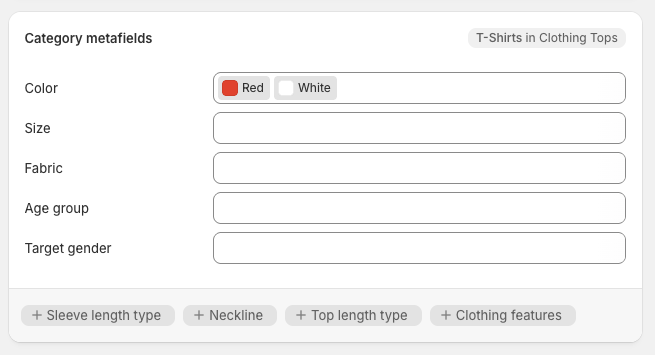
Naming consistency
Keep names human-friendly (e.g., "Forest Green" not "forest-green-01"). These names map to variant option values and appear to shoppers.
Step 3: Link Category Metafields to Variant Options
Connect the Color category metafield entries to your product variants so swatches and option values stay synchronized.
Steps:
- In the product page, scroll to Variants.
- If needed, click + Add options like size or color.
- If Color appears as a suggested option (from the category metafield), select it.
- Existing variant option values auto-populate from the Color metafield entries.
- (Optional) To add a custom color:
- Click Edit next to the option values
- Add new entry
- Fill in fields and Save
- Click Save on the product.
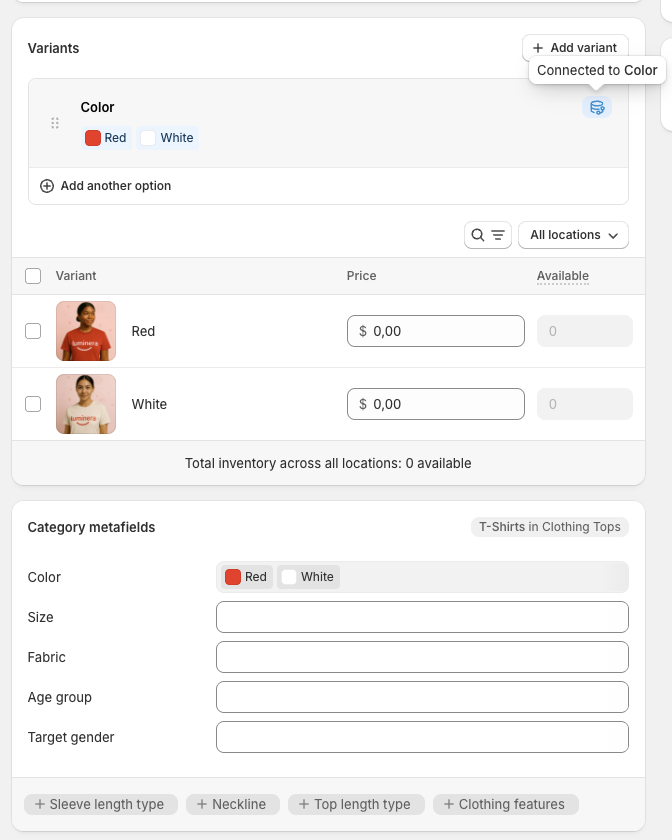
Keep variant values aligned
If you later rename a variant option manually so it no longer matches the category metafield entry, the swatch color may not map as expected. Update the metafield entry instead of ad‑hoc renaming variants.
Step 4: Theme Swatch Rendering (Variant Picker Block)
Swatches are rendered exclusively by the Variant Picker block. They will only appear if the product template contains an active Variant Picker block.
Swatches not showing?
Confirm the product template includes the Variant Picker block and that the Color metafield exists with entries. Without both, swatches cannot render.
Troubleshooting
| Issue | Likely Cause | Fix |
|---|---|---|
| No Color metafield visible | Product Category not assigned | Assign Product Category and save |
| Swatches missing on product page | Variant Picker block removed | Re-add Variant Picker block in theme editor |
| Wrong colors / mismatched names | Renamed variant values manually | Rename via metafield entry so values stay synced |
| New color not appearing | Entry not linked to variant option | Edit variant options and select the new entry |
Best Practices
- Use standardized color names (avoid duplicates like "Blue" and "Royal Blue" unless meaningful).
- Limit extremely similar shades to reduce decision fatigue.
- Keep hex codes accurate if you rely on precise brand palettes.
- Periodically audit variant option names vs. metafield entries.
Summary
- Assign a Product Category to expose attributes.
- Create or refine Color metafield entries.
- Link those entries to variant option values.
- Ensure the Variant Picker block is active.
- Maintain naming consistency to keep swatches reliable.
With these steps, shoppers see consistent, branded color swatches that streamline product selection.